Work through your Inbox
Open what needs you, answer it where it opened, and clear it from the list.
The Inbox collects what is waiting on you across every project you belong to. Work down it once or twice a day and nothing slips.
What arrives
Four things land in the Inbox:
- An agent reply. A project agent finished work you asked for.
- A reply from a person. Someone answered in a conversation you are part of or follow.
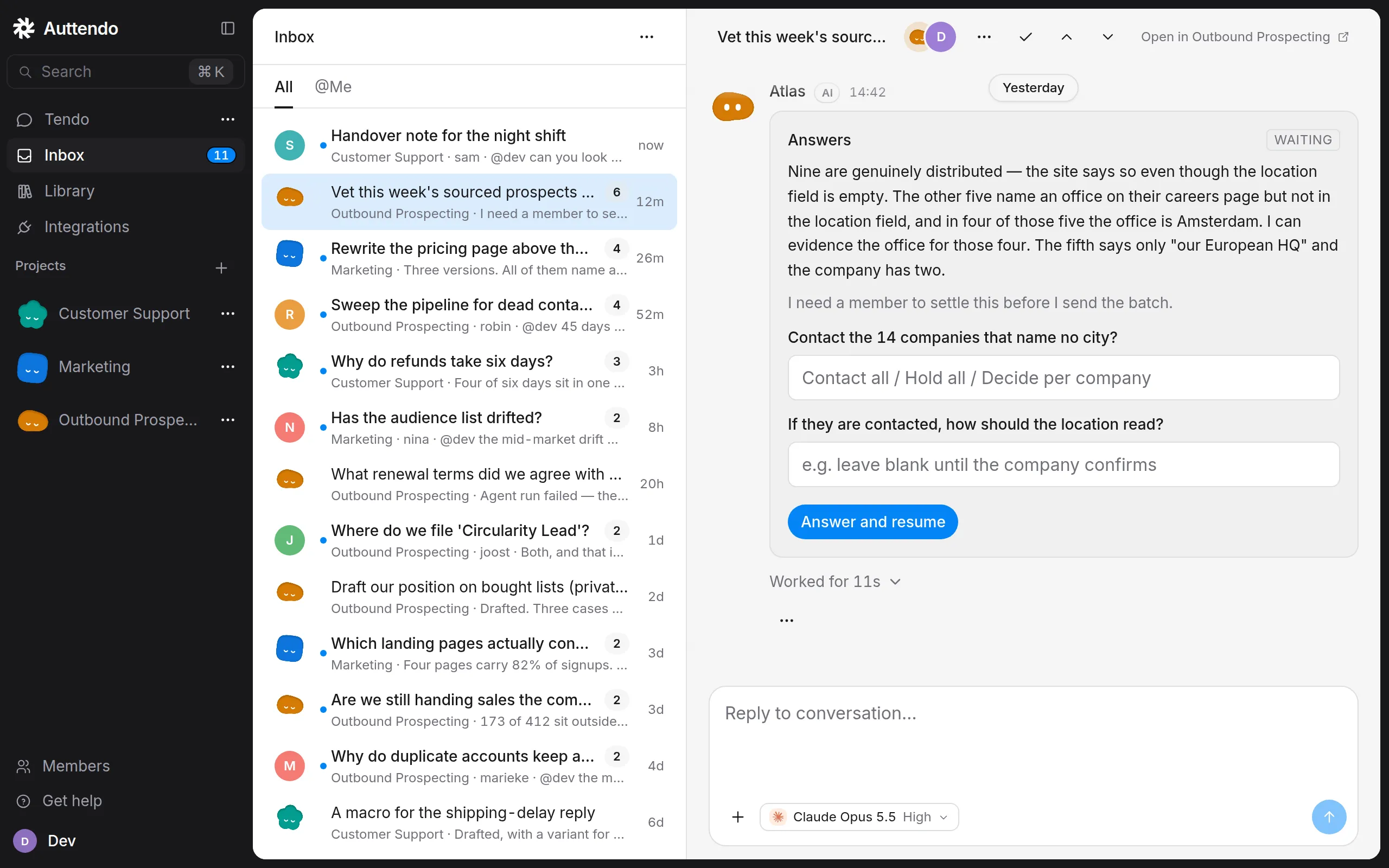
- A decision card. The agent needs you to choose or approve before it can go on.
- A mention. Someone named you with
@.
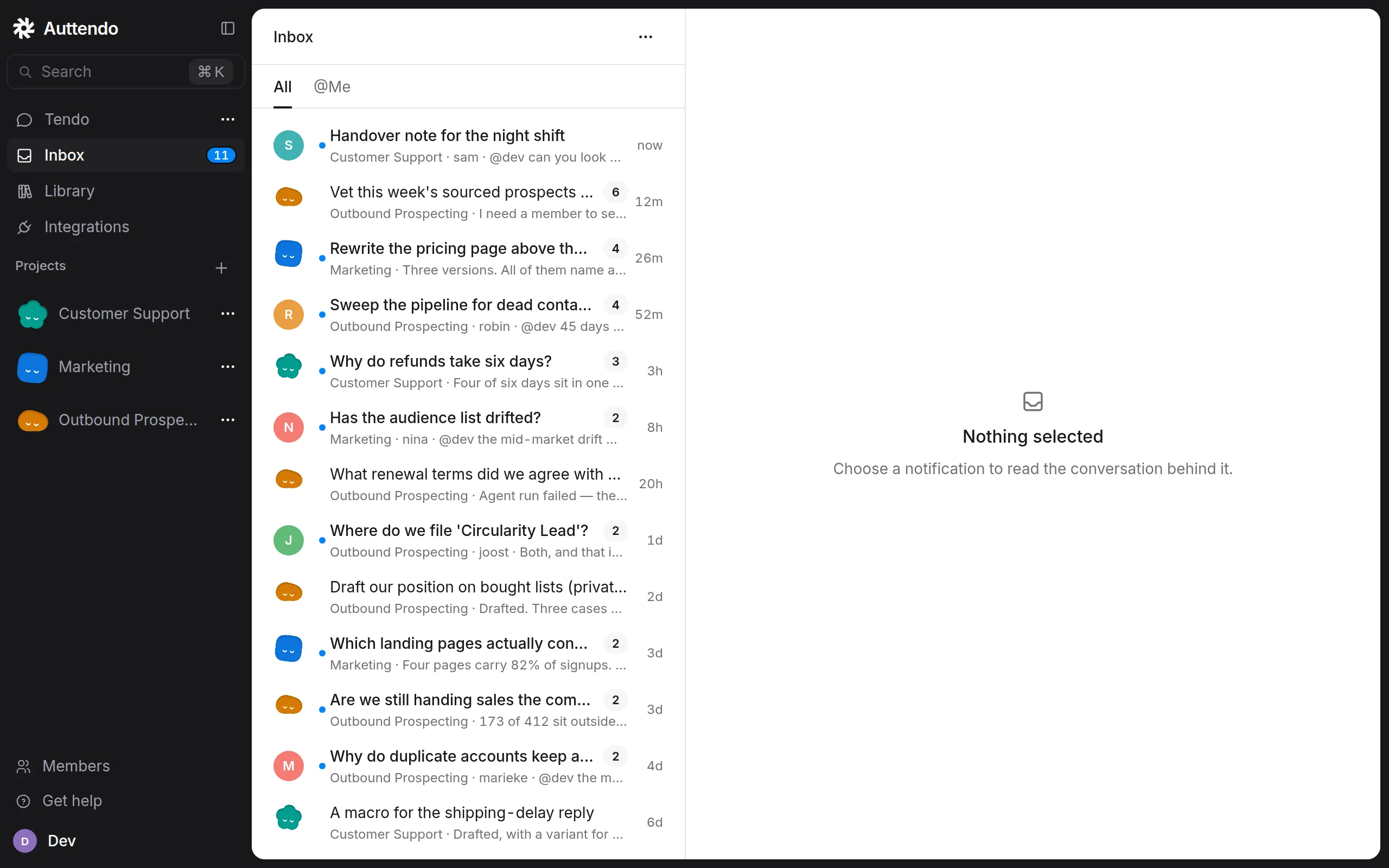
A conversation is one row, however many notifications it produced. Ten replies in the same thread still read as one row, carrying the project it belongs to, who spoke last and the first line of what they said.
Handle an item
Open the row
Click Inbox in the sidebar, then click a row. The conversation opens beside the list, so the rest of the list stays where it was.
Reply or answer there
Type in the composer at the foot of the conversation, or pick an option on a decision card. You are working in the real conversation, so your reply lands in its project exactly as if you had gone there. To see it in its project instead, use Open in and the project name at the top of the pane.
Clear it
When you are done, Clear the item with the check mark at the top of the pane. It leaves the Inbox and the next item opens. Clearing only changes your list: the conversation stays in its project, and nobody else’s Inbox changes.
You can also act on a row without opening it. Right-click it, or use its ⋯ button, for Mark as read, Clear, Open in the project, and Copy link. Clearing from the list this way, or with e, raises a toast with Undo that stays for eight seconds.
Read and unread
An unread row has a dot. The dot is a control: click it to mark the row read, and click the hollow ring left behind to mark it unread again.
The ⋯ menu at the top of the Inbox holds Mark all as read, Unread only to hide everything you have already read, and Notification preferences….
All and @Me
Two tabs sit above the list. All shows everything that reached your Inbox. @Me shows only what names you. If your notification level means only mentions can reach you, the Inbox shows a single list instead.
Keyboard
| Key | What it does |
|---|---|
j / k |
Move down / up the list |
Enter |
Open the selected item |
e |
Clear the selected item |
u |
Mark the selected item read or unread |
⌥U |
Mark everything as read |
1 / 2 |
Switch between All and @Me |
Notification levels
Your notification level decides what reaches the Inbox at all. Open Notification preferences… from the Inbox’s ⋯ menu. Set a global default there, and override it for any project that needs more or less of your attention; a project with no override follows the default.
| Level | What reaches your Inbox |
|---|---|
| All messages | Every new message in the conversations you can open. |
| All messages and threads you follow | The same as All messages. |
| Threads you follow and all @mentions | Conversations you take part in or follow, plus anything that mentions you. This is the default. |
| @mentions only | Only messages that mention you. |
| Muted | Nothing. |
You follow a conversation you take part in automatically.
Troubleshooting
I cleared something by mistake
If you cleared it from the list, press Undo on the toast within eight seconds. Clearing from an open conversation moves straight on without a toast. Either way the conversation is still in its project: open the project and find it there. Clearing never deletes anything.
I can’t find a search box
The Inbox has no search field. Press ⌘K and start typing to find a recent conversation by its title.
Something I expected never arrived
Check your notification level for that project. On @mentions only a reply that does not name you never reaches the Inbox, and a Muted project sends nothing. Also check that Unread only is not hiding a row you have already read.
Related
- Channels — where conversations live in a project
- Tendo — your own project, whose replies land here too
- Find your work in the Library — where the documents and apps from those conversations end up