Channels and conversations
Add, rename and delete a project's channels, start a conversation in one, and control who can read it.
A channel is a room inside a project, where people and the project’s agent talk. It is a room, not a folder: what comes out of the talking belongs to the project, not to the channel it was said in. Every project starts with one channel, General, and always has at least one.
The work itself happens in conversations, and every conversation lives in a channel. Channels sit under their project in the sidebar.
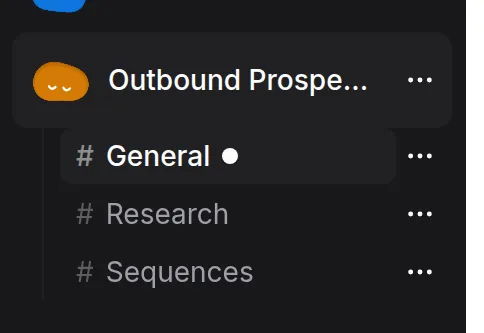
Add a channel
You need editor access on the project.
Open the project's menu
In the sidebar, open the ⋯ menu on the project’s row, or right-click the project.
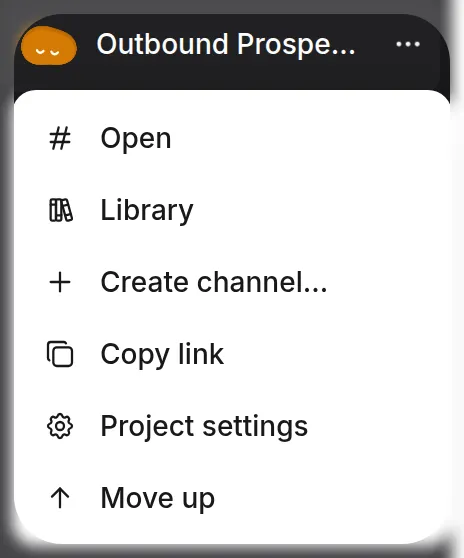
Choose Create channel…
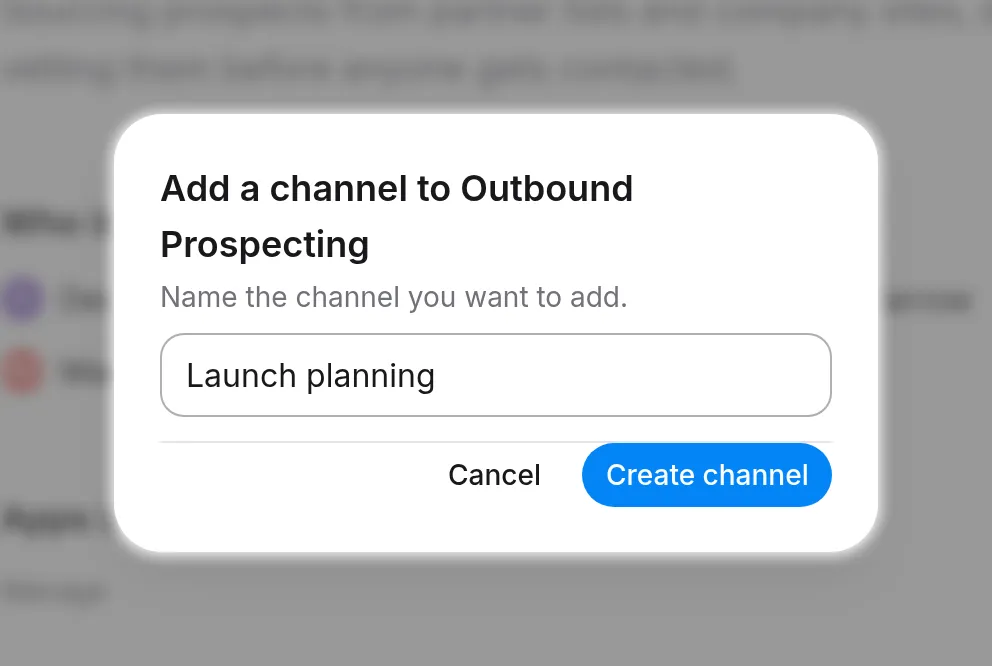
The Create channel… row opens a dialog headed with the project’s name.
Name it and create it
Type the name in Channel name and press Create channel. A name is all it asks for. The channel’s address is derived from the name, and there is no description to write.
Rename or delete a channel
Both live on the channel’s own menu: right-click the channel in the sidebar, or open its ⋯. Both need editor access.
Rename channel takes 1 to 80 characters. The channel keeps its address, so links anyone has already saved to it, or to a conversation in it, keep working. The address itself can’t be changed.
Delete channel asks you to confirm first. Its conversations move to the project’s default channel, General. None of them are deleted.
Start a conversation
Open a channel and type in the composer. Before you send anything, the conversation already includes you and the project’s agent. The empty conversation shows you both, beside a + that opens the people picker if you want a teammate there from the start. People you pick are invited, and notified, only when you send the first message.
The agent being there doesn’t start anything. Nothing runs until you send.
Send is the up arrow, and its label says who the message is for:
- With only you and the agent in the conversation, the message goes to the agent. There is nothing to choose.
- Once another person can read the conversation, the button names what it will do: Ask followed by the agent’s name, such as Ask Atlas, or Send to team.
- When the product can’t tell which you mean, it asks in the composer: Who is this for?, with one option for each.
Mentions
Type @ to mention anything: people, the project’s agent, documents, apps, skills, other projects, and the toolkits this project can use. Only toolkits the project has connected and switched on are offered; the project’s integrations decide that.
A mention also tells the composer who you’re addressing. Mention a person and the message becomes a team message. Mention the agent and it becomes a request to the agent.
Private conversations
A conversation in a channel is visible to everyone who has access to the project. Before you send, the draft tells you which kind it will be. It reads either Visible to everyone in Outbound Prospecting when you send., with your project’s name, or Only invited people will see this when you send.
To switch, use Make private or Make visible to the Project. It sits next to that line, and in the conversation’s menu at the top right, both before and after the first message.
A private conversation needs two things from a reader: access to the project, and their own invitation to the conversation. Invite people through Manage access. An invitation opens the whole conversation up to that point, which is why it is a deliberate step and never a side effect of a mention.
Following
Following is separate from taking part. You can follow a conversation you only read. That doesn’t make you a participant and doesn’t let you write in it. Use Follow conversation or Unfollow conversation in the conversation’s People in this conversation panel.
A later mention, reply or addition never turns following back on after you unfollow. Direct mentions still reach you, and so does every message if your notification level is All messages.
There are four notification levels:
- All messages
- Threads you follow and all @mentions
- @mentions only
- Muted
A project’s level overrides your global one, so you can mute a busy project without going quiet everywhere. What does reach you lands in the Inbox.
Troubleshooting
I can’t delete General
The default channel can’t be deleted. It is where conversations without a channel go, and a project always keeps at least one channel.
Deleting a channel is refused because an automation posts into it
The product says: An automation still posts into this channel. Point it somewhere else or delete it first. A scheduled automation delivers its results into a named channel. Change that automation’s channel, or delete the automation, then delete the channel.
Someone I mentioned can’t open the conversation
A mention doesn’t grant access, so check two things. If the person can’t open the project at all, invite them to it through Share. If the conversation is private, they also need an invitation to it through Manage access. Manage access only invites people who already have project access. Otherwise it says Invite people who already have access to the Project.
The channel has no access settings of its own
That’s by design. A channel has no access list of its own. Its Share panel edits the project’s access and says so, so a change there applies to every channel in the project. To let someone into a channel, invite them to the project. Only private conversations have their own invitations on top of that.
I can’t add, rename or delete a channel
Changing channels needs editor access on the project. Ask a project admin to give you the Editor role.
Related
- Invite people to a project: give people access to every channel at once.
- Inbox: where mentions and followed conversations reach you.
- Integrations in a project: which toolkits a mention can offer.
- Creating a project: every new project starts with General.