Find your work in the Library
Get back to any document, upload, database, app or skill you or your agents made.
Everything you and your agents make lands in the Library: documents, uploads, databases, apps and skills. It is built for getting back to something you have seen before, so it opens on what you touched last.
Pick the right Library
There are three, and they share one layout:
- The workspace Library, from Library in the sidebar, lists everything in the workspace you have access to. Each row names the project it belongs to.
- A project’s Library, from Library in that project’s ⋯ menu, lists only what belongs to that project.
- Tendo’s Library, from Library under Tendo in the sidebar, lists what your own agent made for you. Nobody else sees it.
Pick up where you left off
At the top of the Library, the Pick up where you left off strip holds the six items you are most likely to want next, ranked by when you last opened them, with a nudge for the ones you use most. That is why a skill you run every week can sit ahead of a note you opened this morning. Click a card to open it.
Cropped to the recents strip at the top of the Library.
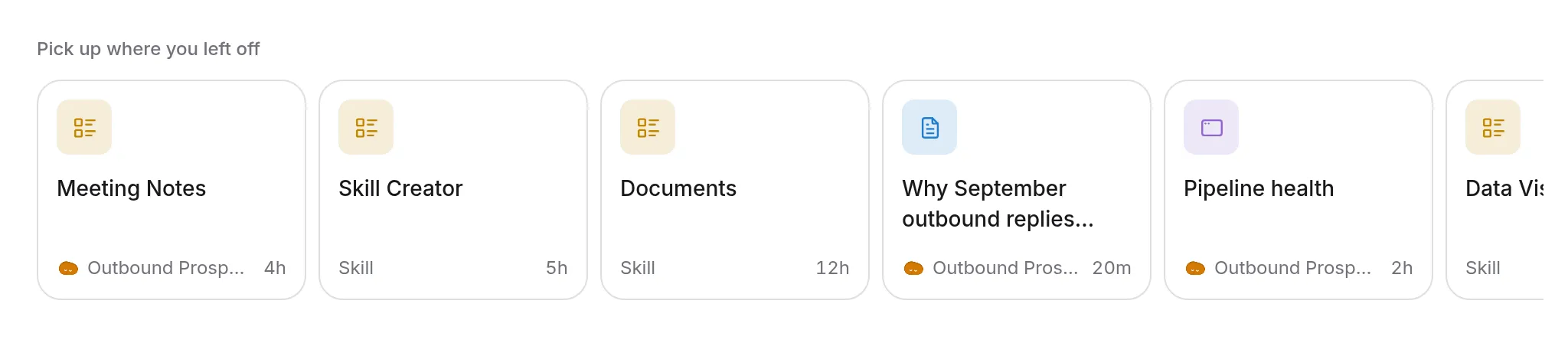
The strip hides while you search or filter, so the list below it has the room.
Filter and search
Below the strip, a row of pills narrows the list to one kind: All, Apps, Databases, Documents and Skills. Each pill shows its count, and a kind you have none of has no pill. Documents covers both documents and uploads.
To find something by name, type in Find a file at the top right. It matches titles, within the kind you have picked.
The list itself is grouped by when each item was last edited: Today, Yesterday, This week and Earlier.
Pin what you return to
Hover a row and click the pin beside it. Pinned items sit in their own Pinned group above the rest of the list. Pins are yours: pinning something does not change anyone else’s Library. Click the pin again to unpin.
Open, share and archive
Right-click a row, or use its ⋯ button, for its actions:
| Action | What it does |
|---|---|
| Open | Opens the item. Clicking the row does the same. |
| Copy link | Copies a link you can paste into a conversation or send to a teammate. |
| Pin / Unpin | Moves the item in or out of Pinned. |
| Use skill | Skills only: starts a message to Tendo that uses the skill. |
| Rename | Gives the item a new title. Editors only; not on skills. |
| Archive | Takes the item out of the Library, after you confirm. Editors only; not on skills. |
To choose who can open an item, open it and use Share in its header. A row that has been shared carries a badge saying so.
Archiving a database archives its rows with it.
What each kind is
- Document — a page of text you or the agent write and edit in place. It saves as you type.
- Upload — a file someone added, such as a PDF.
- Database — a set of rows shown as a table or a board, where every row is a full document of its own.
- App — a small tool that runs in the browser, built by the agent for the project, working from the project’s integrations and databases.
- Skill — a playbook the agent follows, so it does a job the way you have agreed it should be done.
Troubleshooting
I shared a document and they can’t open it
Shared links, including public ones, still require the person to sign in to Auttendo. Anyone you send a link to needs an account and access to the item.
There’s no sort menu
There isn’t one. The list is ordered by when things were last edited, in the Today, Yesterday, This week and Earlier groups. For the handful of items you want at the top regardless, pin them.
Something I made isn’t in this Library
Check which Library you are in. A project’s Library shows only that project’s work, and what you made with Tendo is in Tendo’s Library. The workspace Library, from Library in the sidebar, is the widest view.
Related
- Tendo — your own project, with its own Library
- Sharing a project — who can open a project’s work
- Work through your Inbox — where the agent’s replies come back to you